ClarTone - クラリネット音出し練習
ClarTone — Clarinet tone & long-tone practice (User Guide)
Version: 1.0.2
**Last updated: 2026-09-12
日本語 · English
ClarTone is an iPhone / iPad practice app for beginner clarinetists. It visualizes pitch and hold time from the microphone so you can work on first tone and long tones. Levels L0–L3 are free.
| Where | Name |
|---|---|
| App Store | ClarTone |
| Home screen | ClarTone |
| In-app | ClarTone / ClarTone Pro |
Install: Open ClarTone on the App Store
(See also Get the app for a QR code.)
This page is a screen-by-screen walkthrough after the short in-app tutorial (Settings → Getting started).
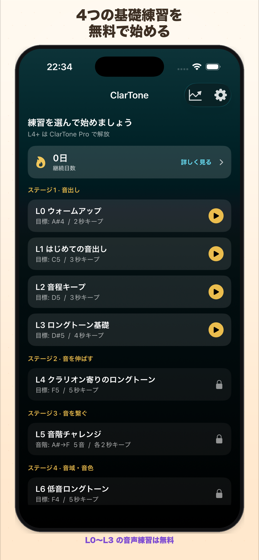
1. Choose a practice on Home
Home lists practice levels. L0–L3 are free; L4–L13 require ClarTone Pro (L14+ may show as Coming soon). Tapping a locked row opens the Pro upgrade sheet.
Use ⓘ on a level to read “why this practice” (Coming soon rows already show that text, so they have no ⓘ).
You can also check your streak and open the progress hub from the chart icon in the top right.
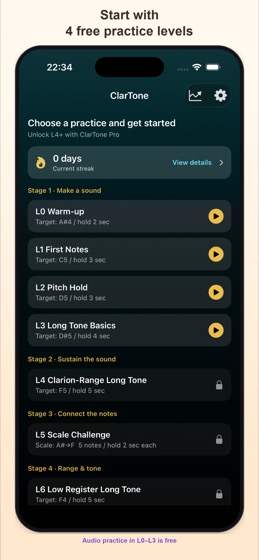
2. During practice
Confirm the target tone in preview, then Listen → countdown starts the session. The REC indicator means the practice session is being recorded.
Preview also shows “why this practice” (expanded the first time you open that level; later use ⓘ). The same tip appears on the results screen.
See §4 Panel reference for what each panel means, and §3 Changing panel layout to show, hide, resize, or reorder panels.
In Settings you can also adjust the reference pitch (A = 438–445 Hz) and tone-break detection. Target notes use concert pitch (sounding pitch).
3. Changing panel layout
Customize practice and review panels in Settings → Panel layout:
- Practice panels — layout during a session
- Review panels — layout on the review screen
On each screen you can:
- Show / hide panels (at least one main panel stays visible)
- Size — Small / Medium / Large
- Reorder — drag the control on the right
- Preview layout — full-screen check (rotate the device for landscape)
- Restore default layout — reset to the initial arrangement
Placement adapts automatically to the screen size. Tap ⓘ next to a panel name for a short in-app description.
Turning on a Pro-only panel (such as mouth camera) on the free plan opens the upgrade prompt.
4. Panel reference
Practice
| Panel | What it shows |
|---|---|
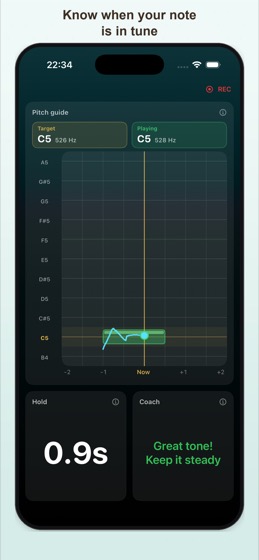
| Pitch guide | Target pitch band scrolls left, with your played pitch as a trail. Center line is “now”; gold marks the target |
| Goal progress | Long tone: keep time vs goal. Scale: notes cleared vs total |
| Clarity | How clean the tone sounds right now (live) |
| Stability | How steady the pitch is right now (live) |
| Hold | Seconds held inside the target zone |
| Mic input | Input level—if low, move closer or blow more steadily |
| Coach | Short tips (too high/low, near tune, need more sound) |
| Input waveform | Attack and continuity of your sound |
| Harmonic balance | Fundamental and overtones as a tone-clarity cue |
| Scale progress | (Scale levels) How many scale notes you cleared |
| Mouth camera (Pro) | Front-camera view of embouchure / reed area; frame with zoom/pan before practice |
Review
| Panel | What it shows |
|---|---|
| Playback | This take, favorite (or reference), or both—with a mix slider when playing together |
| Pitch over time | Vertical = pitch, horizontal = time. Light band = target; blue = this take; gold = reference when shown |
| Volume change | Relative loudness over time (not pitch) |
| Hold | Longest keep time in this session |
| Clarity / Stability | Peak values for this session |
| Pitch accuracy | How close you stayed to the target on average |
| Harmonic balance | Clarity / resonance cue |
| This mouth video (Pro) | Mouth/reed video for this session (synced with audio) |
| Favorite mouth video (Pro) | Comparison clip; if none is saved, a sample framing guide is shown |
5. After practice (review)
When a session ends, the review screen opens with pass/fail, pitch chart, playback, volume envelope, and scores.
You can register a target tone you like as a favorite (manage later in Settings → Practice targets).
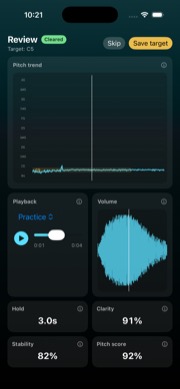
Audio review is available on the free plan. Mouth-camera video panels are Pro.
6. Reed tracking (ClarTone-specific)
On clarinet, noting which reed you used makes later review easier.
- Add reeds in Settings → Reed management (name, start date, and so on)
- When a reed wears out, mark it retired (archive instead of delete so past history still resolves)
- Optionally attach the reed you used on the preview or result screen (last choice is the default)
Deeper reed-by-reed insights (usage, scores, brand match) are available with ClarTone Pro. Lifetime estimates are not provided.
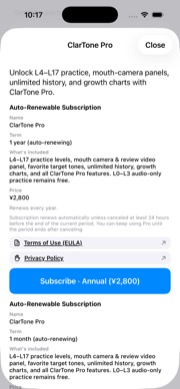
7. ClarTone Pro
Pro unlocks:
- L4–L13 practice (higher tones, scales, register work, slurs; L14+ may show as Coming soon)
- Reed insights (usage, scores, brand match)
- Mouth/reed camera panels and review video panels
- Unlimited history
- Per-level growth charts
Buy or restore in Settings → Subscription. Cancel in iOS Apple ID → Subscriptions.
8. Free vs Pro
| Item | Free | Pro |
|---|---|---|
| Levels | L0–L3 | L4–L13 (except Coming soon L14+) |
| Audio review | Yes | Yes |
| Mouth/reed camera | — | Yes |
| Reed register & session link | Yes | Yes |
| Reed insights | — | Yes |
| History | Last 5 sessions | Unlimited |
| Growth charts | — | Yes |
9. Mouth/reed camera (Pro)
- Turn on mouth-related panels in Settings → Panel layout (practice / review).
- Free users who enable a Pro panel see the upgrade prompt.
- Video stays on device; it is not uploaded to a developer server.
- Camera permission is requested only when you use the mouth panel. Mic-only practice needs the microphone alone.
10. Progress and history
- Open the progress hub from the chart icon on Home.
- Streak is available on Free; growth charts are Pro.
- Delete individual or all records in Settings → Practice history.
Get the app
Start free (L4+ and mouth camera require ClarTone Pro).
Open on the App Store: ClarTone

- Scan the QR with your iPhone / iPad camera, then tap the link
- Tap Get (or Redownload) on the App Store
You can also search the App Store for “ClarTone” or “clarinet tone”.